
MOODSK GUIDES
Make a folder icon with your own text
Edit a folder icon label in Moodsk, preview the design, and understand which output actions require Editor Pro.
A folder name is useful. A short label inside the icon can add a visual cue: WORK, NOTES, or a project initial.
Moodsk can combine text with an icon design. Choose the design for its shape, then keep the label short enough to read when the folder is small.
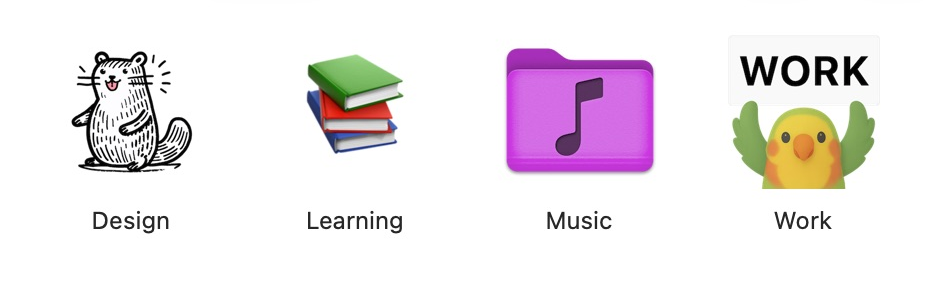
Edit the label
- Choose an icon with text and open it with Use Editor.
- Select its text layer. Click the text to replace it with your label.
- Adjust the color, size, and position. Keep enough contrast between the text and its background.
- Check the whole design before opening the export menu.
Labels with one or two short words usually work better than a sentence. Keep the Finder folder name descriptive; the icon label is an extra cue.
Apply or export
The editor's export menu includes Override Icon, Export Folder, and Export PNG. Use Override Icon to choose an existing folder, or Export PNG to save the design as an image.
Editor Pro is required to export or apply editor output. Editing a preview is not the same as having output access. Check the purchase sheet for the current price. Placard and Picnic are separate icon-pack purchases; an Editor Pro purchase does not include them.
If you only need a different folder color, start with the free Colors workflow. That flow applies a built-in icon directly and does not require the editor.
Check the real folder
After applying the design, view the folder in Finder at the size you use each day. If the label is too small, use fewer letters or a simpler design. Do not judge the result only from the large editor preview.
For several matching labels, Moodsk also supports pack-wide text editing. A purchased pack still follows its own entitlement rules. Keep that distinction clear when you choose an icon.