
MOODSK GUIDES
How to change a folder icon on Mac
Use your own image in Finder, or choose a built-in color icon in Moodsk. See the result before you start.
Four blue folders can look much the same. Keep their names, but give each one a different icon so you can recognize it at a glance.
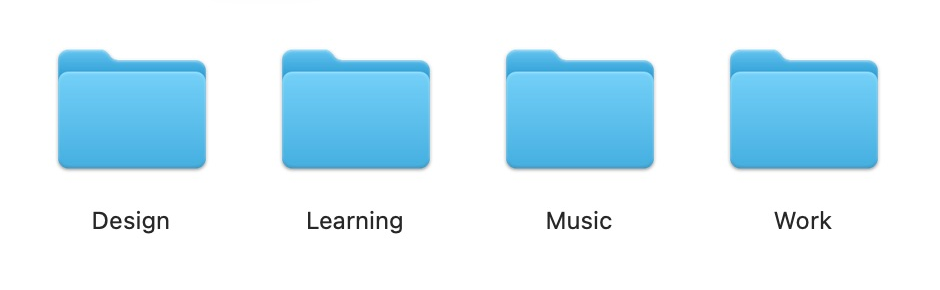
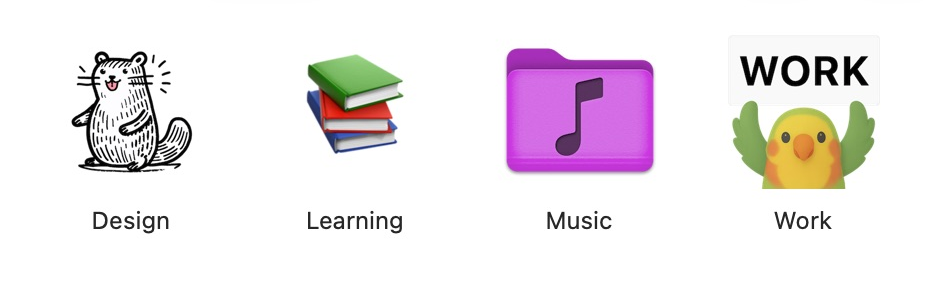
These are real Finder captures of test folders. The names and order stayed the same. Moodsk applied an illustration to Design, a book emoji to Learning, a purple folder with an embossed music note to Music, and a WORK placard to Work. Colors, Emoji, and Cartoon Doodle Zoo are free collections. The edited music folder requires Editor Pro; Placard is a separate paid pack.
Use your own image with Finder
You can change a folder icon without an app.
- Open the image in Preview and choose Edit > Copy.
- Select your folder in Finder and choose File > Get Info.
- Click the small icon at the top of the Info window. Do not select the large preview below it.
- Choose Edit > Paste.
Apple describes this method in its folder customization guide. Recent macOS versions also offer built-in folder colors, symbols, and emoji through Customize Folder. If your version has that command and it meets your needs, use it.
Choose a color icon with Moodsk
- Open Moodsk and choose a color from Colors.
- Click Choose Files or Folders.
- Select a test folder and click Choose.
- Wait for the completed result, then check the folder in Finder.
The built-in Colors collection is free and supports direct application. You do not need to enter the editor for this workflow. Start with an empty test folder so you can see the result before using it on a project.
Try different styles
Choose Cartoon Doodle Zoo for an illustration or Emoji > Study for a book emoji, then use Choose Files or Folders to apply the selected icon. For the WORK example, open the owned Placard pack, select bird, enter WORK in its text field, and apply it. Placard requires its own purchase.
When the editor helps
For the music example, open Colors > Purple in the editor. Use Add badges to add a music note, set its style to Embossed, and adjust its size and position. Choose Export icon > Override Icon, select Music, and use Confirm Replace. Check the result in Finder.
Use the editor when you want your own text, layers, or a reusable design. Exporting or applying editor output requires Editor Pro, a one-time purchase. Some icon packs are sold separately.
For a simple visual system, continue with project folder colors. For a personal label, see folder icons with text.